
Your team's docs, always one click away — no matter which project you're working on.
What it does
Engineering teams keep their documentation somewhere: a git repo full of Markdown files, a folder of ADRs, a set of runbooks, setup guides, decision docs. The problem is that when you need to look something up, you have to leave VS Code — open a browser tab, find the right Notion page, search GitHub, or switch to a different folder in a new window.
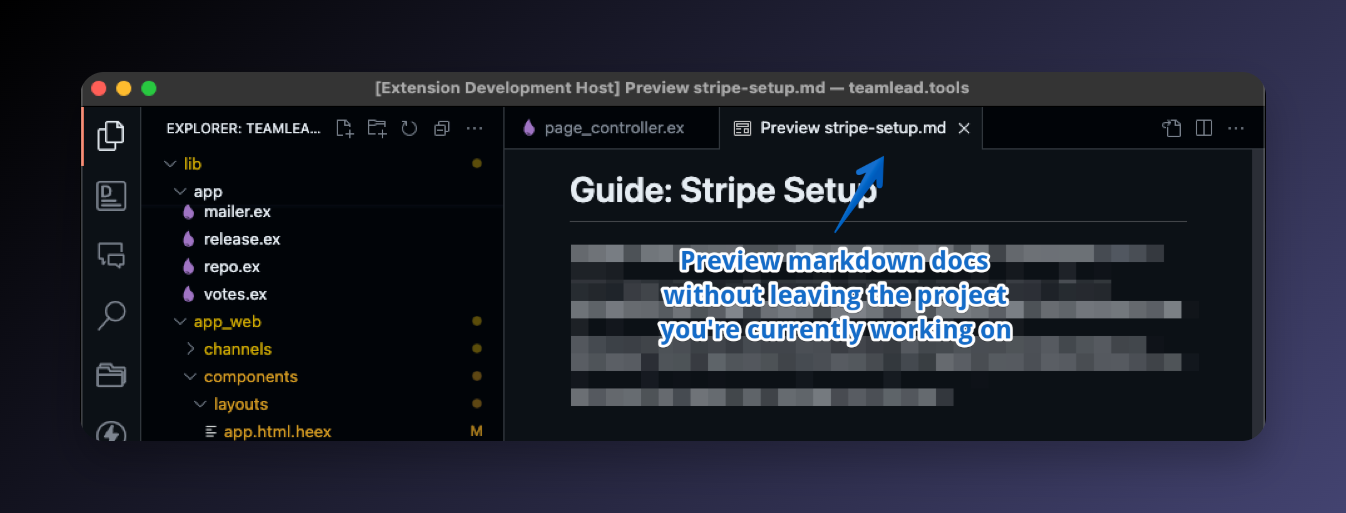
TeamDocs puts that documentation folder directly in your VS Code sidebar. One click on the Activity Bar icon and your entire docs tree is there, searchable, and renders Markdown as a preview. It doesn’t matter which project you have open — the same docs folder is always available.
Browse your docs from the Activity Bar
A dedicated Team Docs icon is added to the Activity Bar. Click it to see the full folder tree of your documentation, regardless of which project is currently open in VS Code.
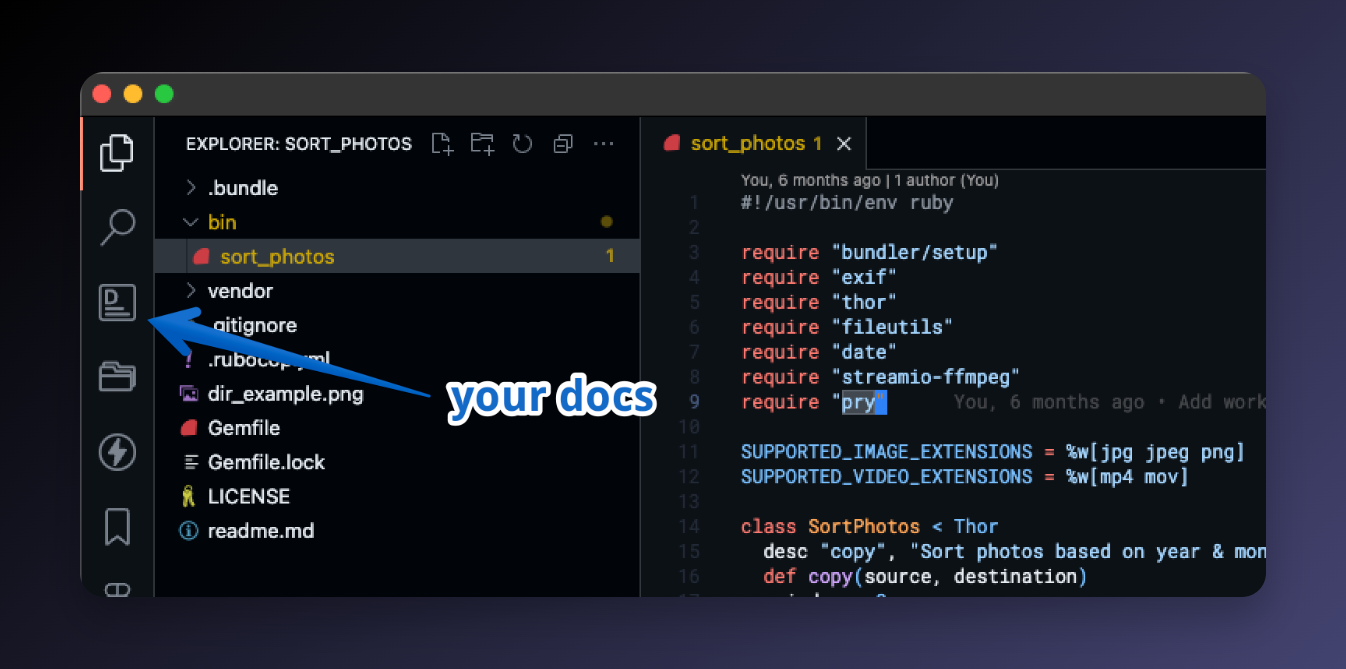
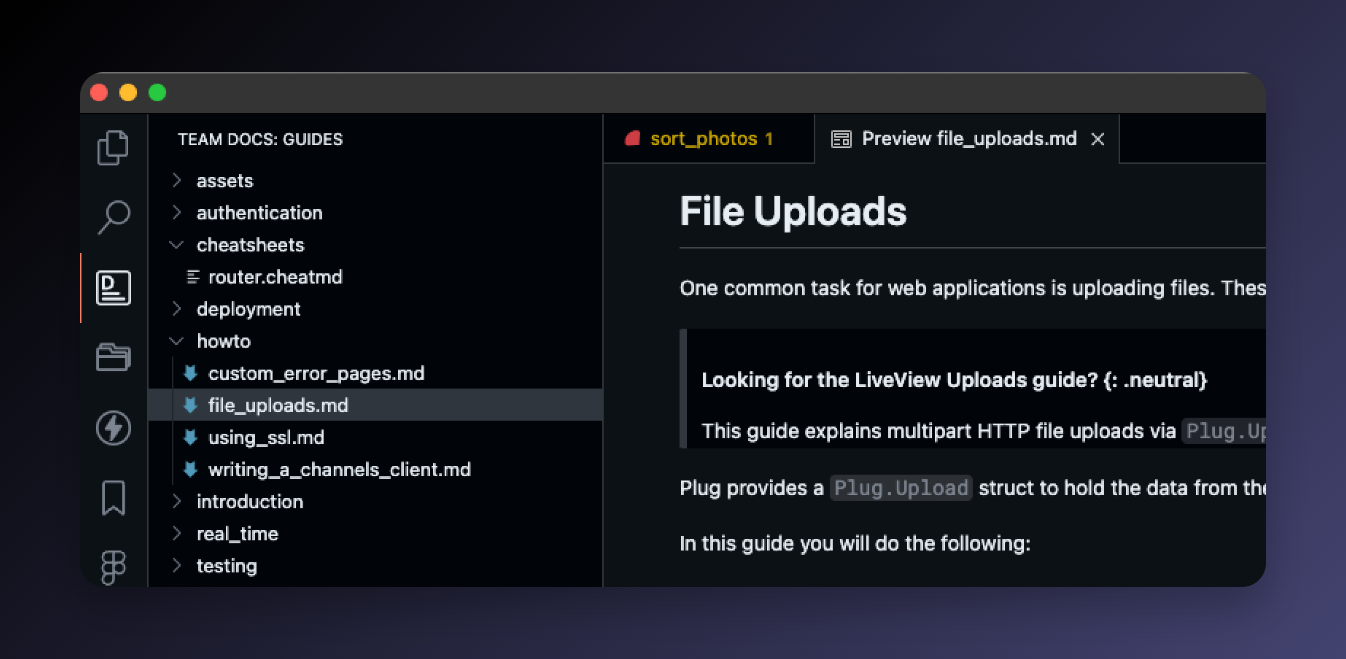
- The view title is automatically set to the name of your docs folder
- Folders are listed before files, sorted alphabetically
- Files and folders matching VS Code’s
files.excludesetting are hidden automatically
Markdown opens as a rendered preview
Clicking any Markdown file opens the rendered preview directly — not the raw source. You see formatted headings, code blocks, tables, and links, exactly as your team intended.
Non-Markdown files (images, PDFs, code files) open with their default editor.
Supported extensions: .md, .markdown, .mdown, .mkdn, .mkd, .mdwn, .mdtxt, .mdtext, .text
Quick search across all docs
Run Team Docs: Search from the command palette (or click the search icon in the Team Docs view header) to fuzzy-find any file without browsing the tree.
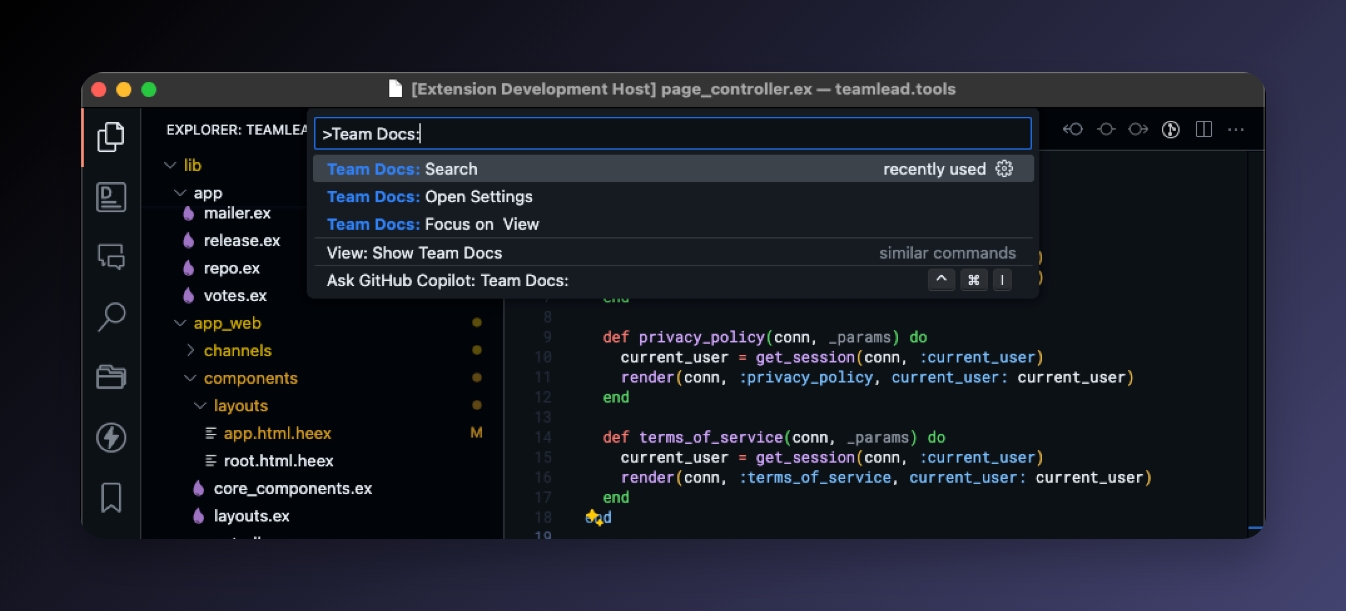
Type to filter files by name or path:
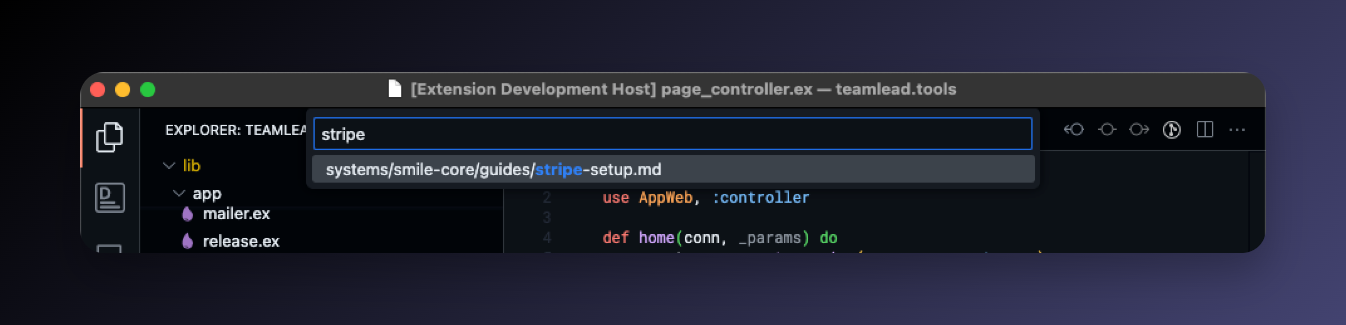
Hit Enter — Markdown files open as a rendered preview, everything else opens normally:
Works across every project
TeamDocs is configured globally, not per-workspace. The same docs folder appears in every project you open — there’s no per-project setup, no .vscode/settings.json to maintain in each repo.
Who it’s for
TeamDocs works well for any team that:
- Keeps engineering docs in a git repo (ADRs, RFCs, runbooks, setup guides, onboarding docs)
- Wants documentation accessible without a browser or a separate window
- Uses Markdown as the primary documentation format
- Works in VS Code or a compatible editor like Cursor
It’s especially useful on engineering teams where context-switching to Notion or Confluence mid-coding breaks flow. Clone your docs repo once, point TeamDocs at it, and your documentation lives in the sidebar.
Getting started
- Install TeamDocs from the Marketplace
- Clone or locate your team’s documentation folder (e.g.
~/Docs/engineering) - Open VS Code settings and set
teamdocs.path_to_docs_folder:"teamdocs.path_to_docs_folder": "~/Docs/engineering" - Click the Team Docs icon in the Activity Bar — your docs are now always available
If the setting is empty, TeamDocs will prompt you to configure it the first time you open the view.
FAQ
Does it only work with Markdown? No — any file type works. Markdown files open as rendered previews; everything else opens with VS Code’s default editor for that file type.
Do my docs need to be in a git repo? No. TeamDocs just reads from a folder path. It can be any directory — a git repo, a local folder, a network path.
Does it work with private documentation? Yes. TeamDocs reads from the local filesystem, so access is controlled by whatever you have cloned or mounted locally.
What if I want different docs at work vs. personal projects?
You can change the teamdocs.path_to_docs_folder setting at any time. You could also create a VS Code profile for work and personal use, each with a different path configured.
Does it support nested folders in the docs tree? Yes — the Activity Bar view shows the full recursive folder tree.
What VS Code version does it require? VS Code 1.75 or newer.
Settings
| Setting | Description |
|---|---|
teamdocs.path_to_docs_folder |
Absolute path to the folder containing your team’s documentation. Supports ~ and ${HOME} expansion. |
TeamDocs also honors VS Code’s files.exclude setting to filter what shows up in the explorer and search results.
From the blog
- Team docs always one click away in VS Code — a walkthrough of how I use TeamDocs at work
Check out my other extensions
- Don’t Git Lost — step through any file’s git history without opening a terminal
- Folder Projects — turn your directory structure into an instant project switcher
