
Step through any file's git history without leaving VS Code.
What it does
Every codebase has lines you didn’t write — code that looked obvious until it broke, or logic that makes no sense without context. The standard answers are git log --follow -p -- file.rb, which drops you into a terminal wall of text, or navigating a nightmare of commits on GitHub/GitLab trying to find when a specific file changed. Both break your train of thought.
Don’t Git Lost keeps you in the editor and answers the question “what happened to this file before now?”:
- Walk through every commit that touched the current file, forwards and backwards
- See who wrote the line your cursor is on, right there at the end of the line
- Hover for the full story — author photo, complete commit message, links to the commit and PR
Time-travel through your file’s history
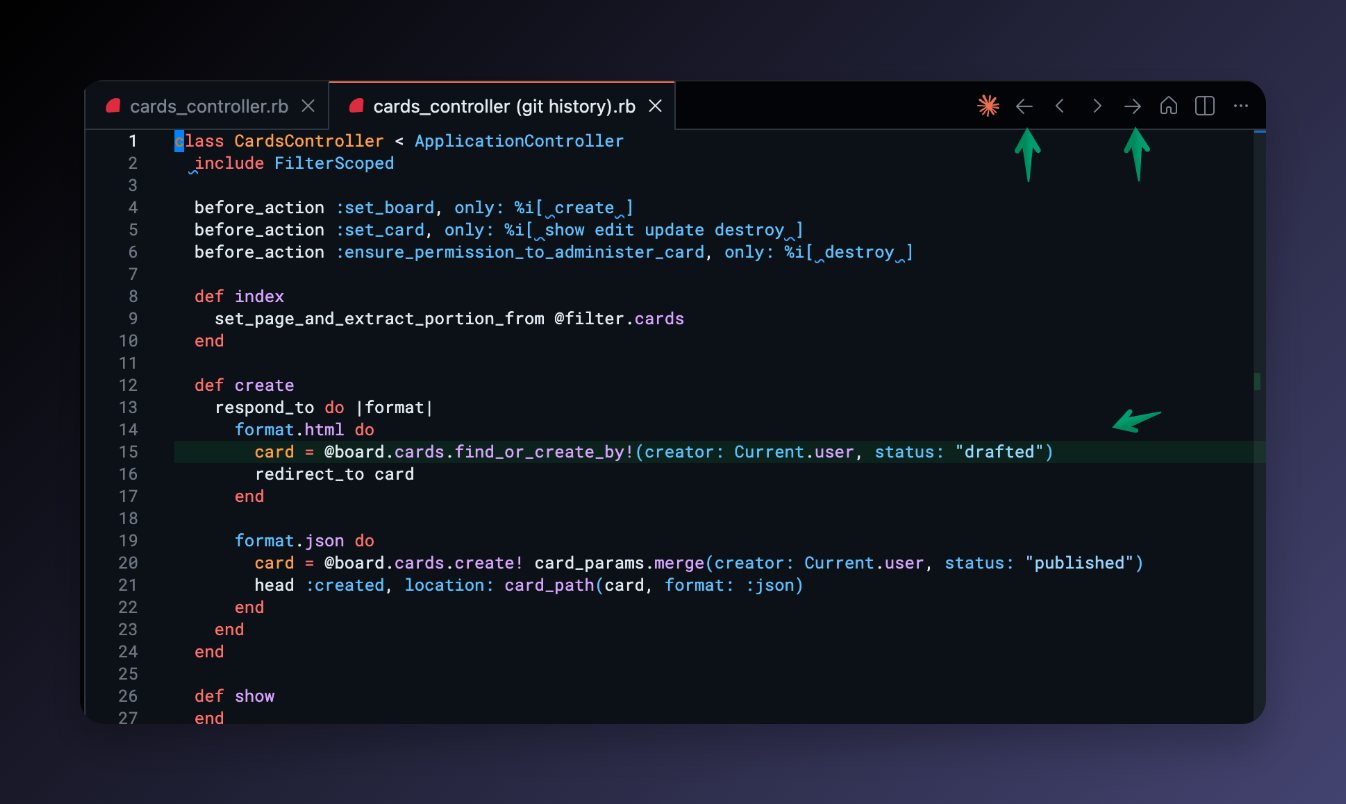
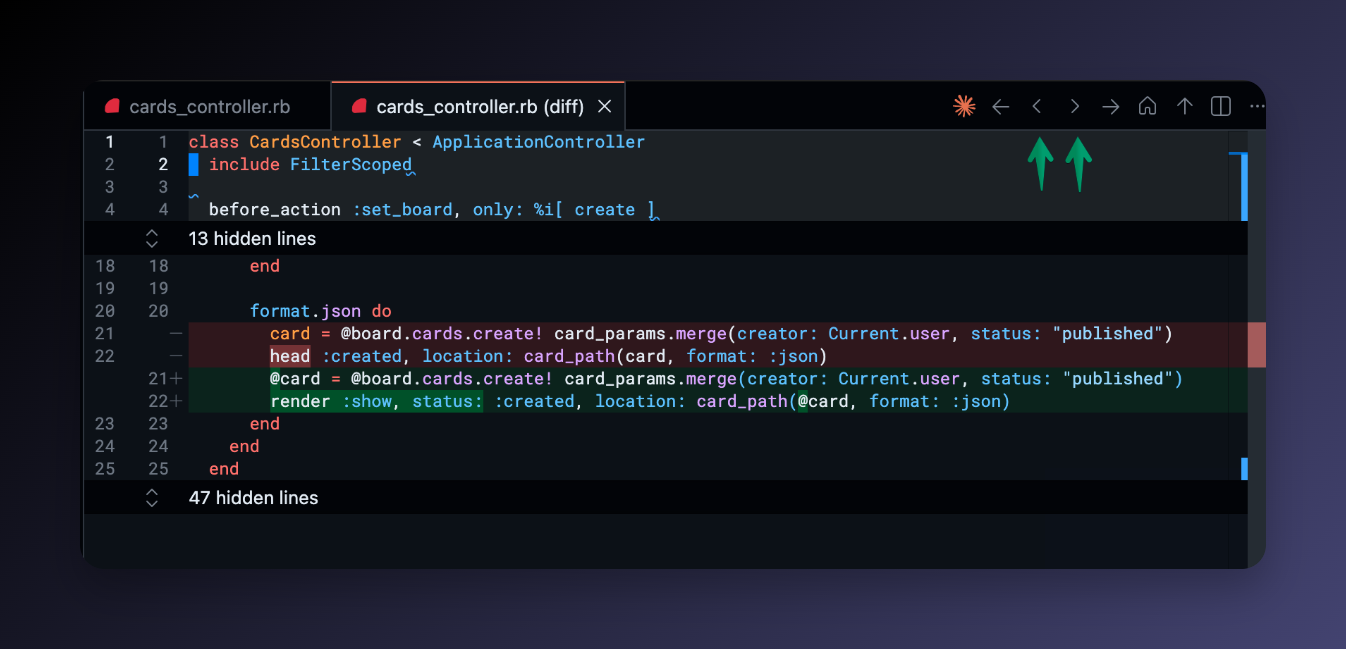
Five buttons appear in the editor toolbar when you open any file tracked by git:
| Button | Action |
|---|---|
| ← | Previous commit — gutter overlay shows exactly what changed |
| ◁ | Previous commit — side-by-side diff editor |
| ▷ | Next commit — side-by-side diff editor |
| → | Next commit — gutter overlay |
| ⌂ | Return to the current working copy |
Each navigation updates the same tab in place — no pile-up of diff tabs. The status bar shows which commit you’re viewing so you always know where you are in the history.
Inline blame for the current line
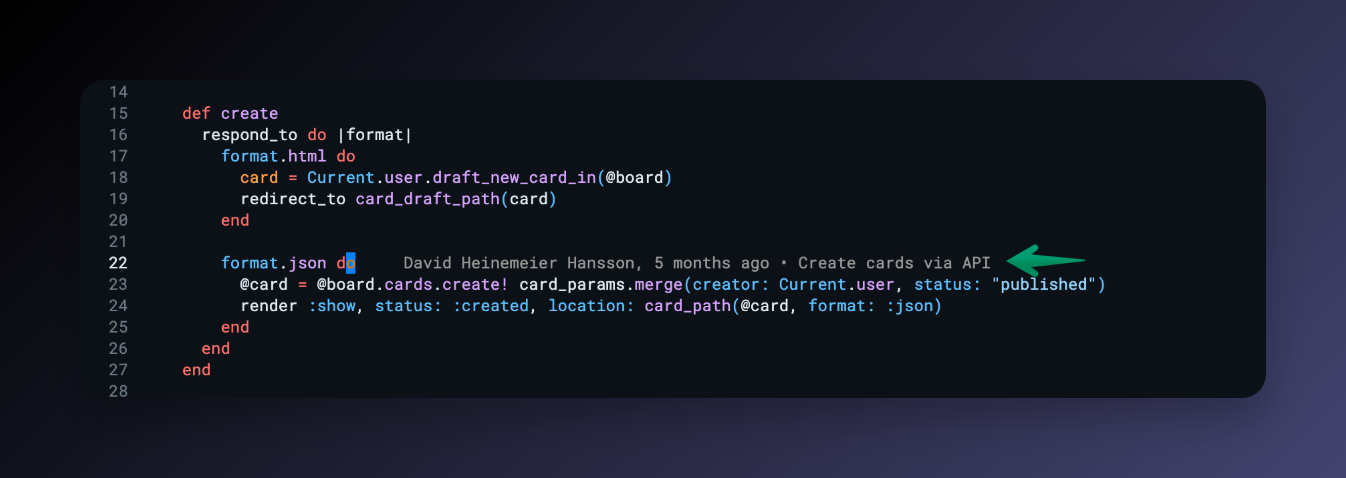
The line where your cursor sits gets a quiet annotation at the end:
Jane Doe, 11 years ago • First working version of cleaned-up production logs.
- Updates as you move the cursor (debounced, so it doesn’t flicker)
- Hides automatically on uncommitted lines
- Fully configurable format:
${author},${ago},${date},${sha},${message},${pr}
Rich commit hover card
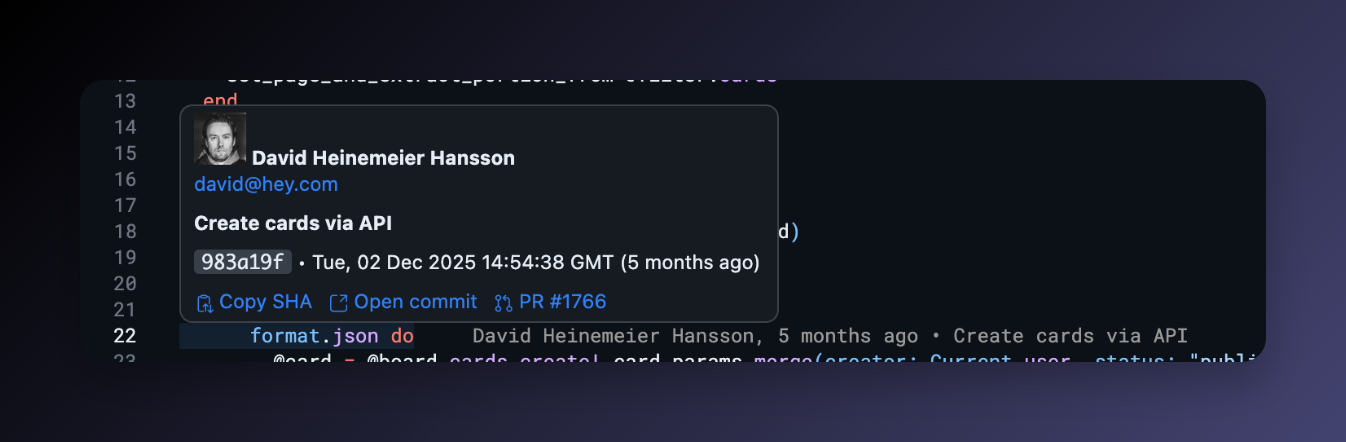
Hover the blame annotation to see the full picture:
- Author photo (from GitHub, GitLab, or Bitbucket)
- Full multi-line commit message
- Short SHA, absolute date, and relative time
- Copy SHA to clipboard
- Open commit in your browser
- Open PR that introduced the change (when available)
Works with public repos out of the box. For private repos, sign in once via VS Code’s built-in GitHub account, or paste a GitLab/Bitbucket token in settings.
Works in Cursor too
Cursor’s editor toolbar is more compact, so the navigation buttons may appear inside the ... overflow menu by default. To pin them as visible icons: click ... → Configure Editor Title Menu Icons → toggle the Don’t Git Lost entries on. You only need to do this once.
Why not GitLens?
GitLens is a powerful, full-featured git extension. If you want everything git-related in one place — a full graph, worktrees, visual file history, AI commit explanations — GitLens has it.
Don’t Git Lost is for a different need: lightweight, distraction-free file history. It installs in seconds, adds five toolbar buttons and one line of blame annotation, and gets out of your way. There’s no sidebar to configure, no feature wall, no paid tier gating core functionality. If the question you’re asking is “what happened to this file?”, Don’t Git Lost answers it with the least friction possible.
The two extensions can coexist — you can run both if you want GitLens’s graph alongside Don’t Git Lost’s inline blame.
FAQ
Does it work with self-hosted GitHub Enterprise or GitLab?
Yes. Configure the dontgitlost.host.selfHosted setting to map your self-hosted hostname to its type.
Does it work with Bitbucket?
Yes. Set dontgitlost.host.bitbucketToken to a username:apppassword app password.
Does it show history for renamed files? Yes — git history is followed across renames.
Can I disable the blame annotation and keep only the toolbar buttons?
Yes. Set dontgitlost.blame.enabled to false in settings.
Does it slow down VS Code? The blame annotation is debounced and only runs when you stop moving the cursor. The toolbar buttons only load history when you click them. There’s no background scanning.
What VS Code version does it require? VS Code 1.75 or newer (or a compatible fork like Cursor).
Settings
| Setting | Default | Description |
|---|---|---|
dontgitlost.blame.enabled |
true |
Show the inline blame annotation |
dontgitlost.blame.format |
${author}, ${ago} • ${message} |
Annotation template |
dontgitlost.blame.messageMaxLength |
80 |
Max characters of commit message shown inline |
dontgitlost.timeTravel.enabled |
true |
Show back/forward toolbar buttons |
dontgitlost.host.gitlabToken |
"" |
GitLab personal access token (read_api scope) |
dontgitlost.host.bitbucketToken |
"" |
Bitbucket app password (username:apppassword) |
dontgitlost.host.selfHosted |
{} |
Map of self-hosted hosts |
From the blog
- How I navigate git history in VS Code without opening a terminal — a walkthrough of the blame, hover card, and time-travel workflow in practice
- A lightweight alternative to GitLens for VS Code — how Don’t Git Lost compares and who it’s for
Check out my other extensions
- Folder Projects — turn your directory structure into an instant project switcher
- TeamDocs — keep your team’s Markdown docs one click away in the Activity Bar
