There’s a specific kind of frustration when you open a file and find code that doesn’t make immediate sense. Not badly written — just code that clearly had a reason, and that reason isn’t in the code itself.
The instinct is to reach for git:
git log --follow -p -- app/models/user.rb
You get a wall of diffs. You scroll, squint at SHAs, try to mentally map the changes to the question you started with. By the time you find the commit, you’ve lost your context.
There’s a better way, and it stays inside the editor.
Inline blame: the answer at a glance
The first thing I wanted was to know who wrote the line my cursor was on and roughly when. Not a full audit — just enough context to know whether this was ancient code or something that changed last week.
With Don’t Git Lost, every line your cursor rests on gets a quiet annotation at the end:
Jane Doe, 11 years ago • First working version of cleaned-up production logs.
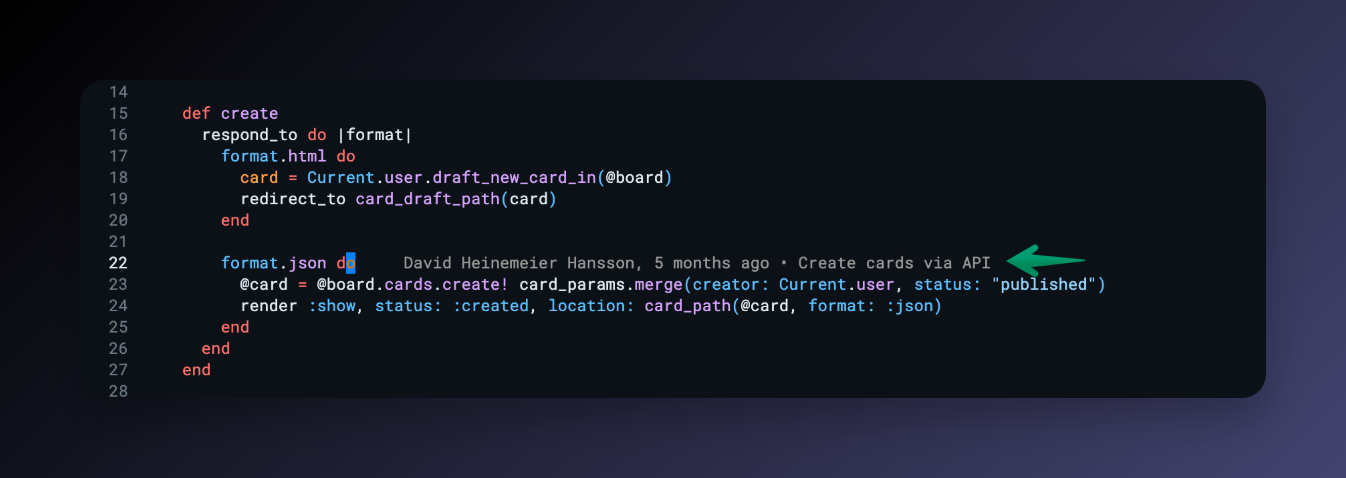
That one line usually answers the first question.
If the code is eleven years old, it predates half the codebase and probably made sense in a context you’d need to research. If it’s from last Tuesday, you know who to ask.
The annotation hides on uncommitted lines, debounces as you move (no flickering), and you can configure the format to show exactly what matters to you.
The hover card: the full story without leaving the editor
When that one-liner isn’t enough, hover it.
A card appears showing:
- The author’s photo (pulled from GitHub, GitLab, or Bitbucket)
- The complete commit message and exact date
- A short SHA with a copy button
- A link to open the commit in the browser
- A link to open the PR — when the commit was part of one
The PR link is the one I use most. When a commit message says something vague like “fix edge case in billing,” the PR usually has a full description, screenshots, and the discussion that explains why this fix was chosen over the alternatives.
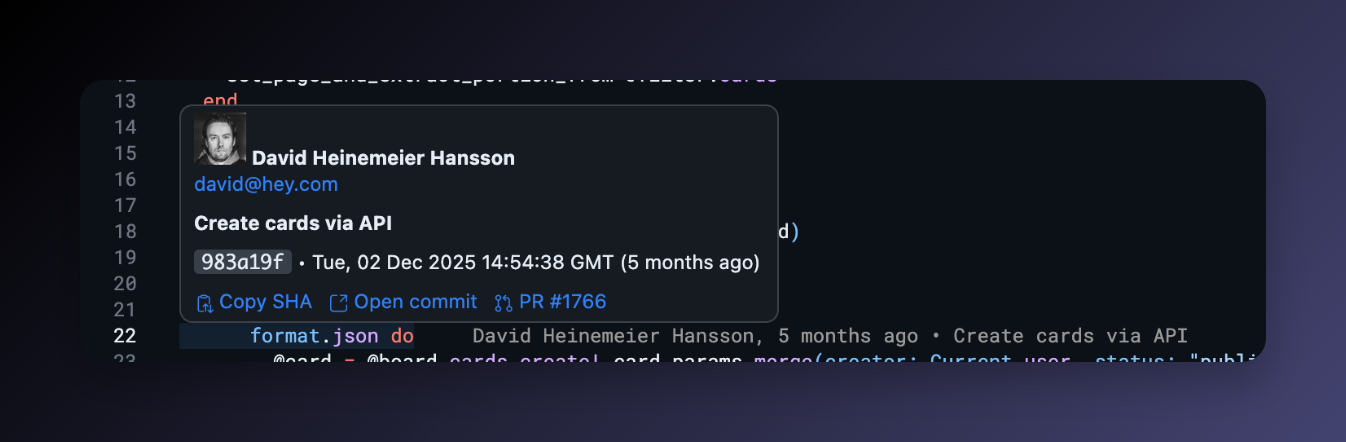
All of that in a hover. No terminal, no browser tab, no context switch.
Time-travel: stepping through the file’s whole history
Sometimes a single commit isn’t enough. You want to walk the file backwards and see how it evolved — which commits touched it, what each one changed, and in what order.
Don’t Git Lost adds five buttons to the editor toolbar when you’re in a git-tracked file:
- ← and →: step to the previous or next commit that touched this file, with a gutter overlay showing what that commit changed (added lines in green, removed lines in red)
- ◁ and ▷: same navigation, but opens in a proper side-by-side diff editor
- ⌂: return to the current working copy
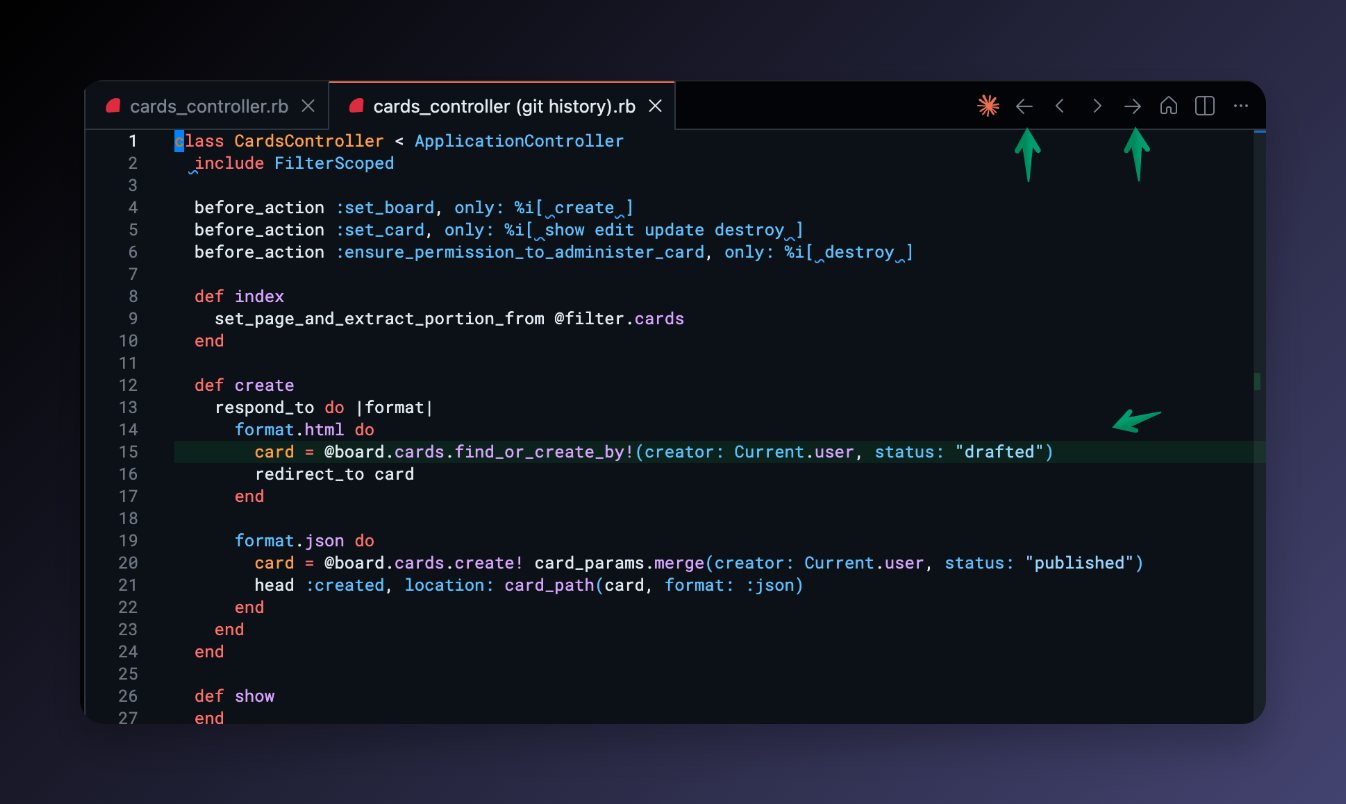
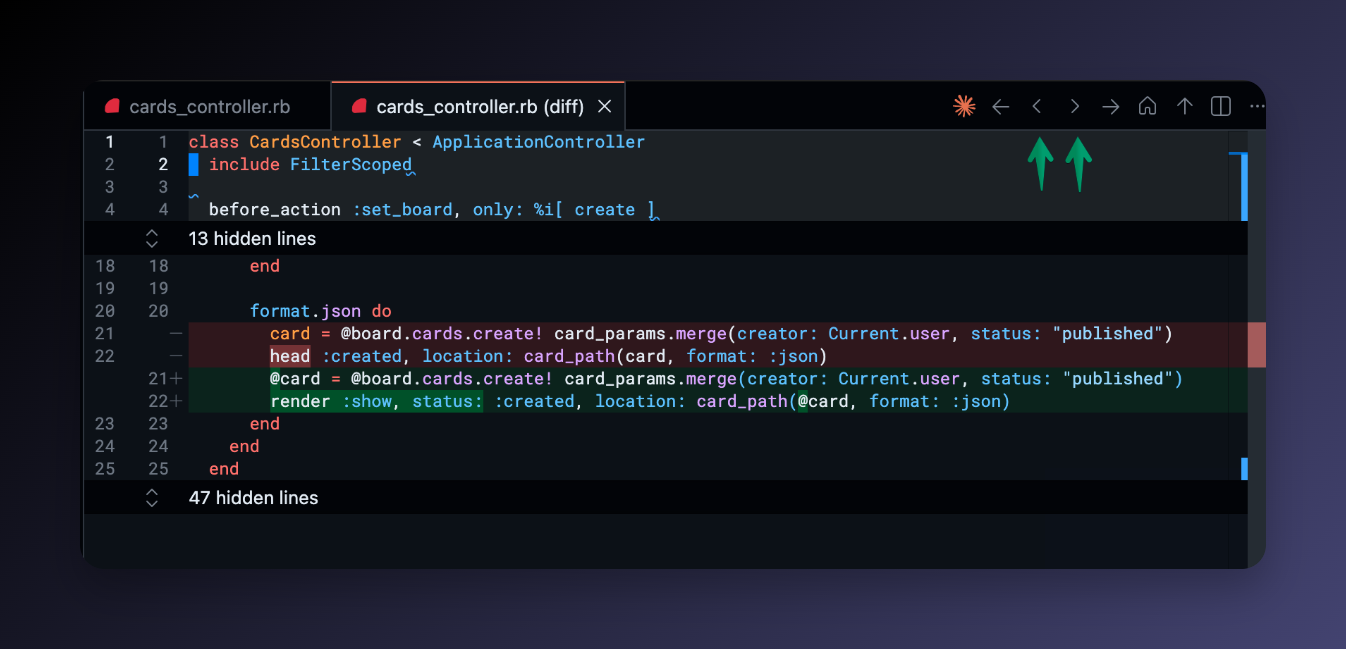
Each step updates the same tab — no pile-up of diff editors. The status bar shows which commit you’re currently viewing so you always know your position in the history.
This is the feature I reach for when the blame annotation points to a commit that itself looks odd. I step back through the file’s history until I find the version where the pattern was first introduced, then check the commit message and PR for context.
A real example
Last week I was looking at a data migration in a Rails app. There was a loop with an unusual guard clause — checking a condition that the data model should already prevent.
The blame annotation showed it was added two years ago. The commit message: “add guard for legacy records.” That told me something, but not enough.
I hovered the annotation and clicked the PR link. The description explained it all: when the migration first ran, there were records in production that violated the model constraint because a previous migration had been inconsistent. The guard was protecting against exactly that case.
Without the PR link, I’d have left a comment asking about it, or dug through git manually. With it, I had the answer in fifteen seconds — without leaving VS Code or losing my place in the code.
Setup
Install Don’t Git Lost from the VS Code Marketplace or Open VSX Registry. No configuration required — inline blame and the toolbar buttons are on by default.
For private repos, VS Code’s built-in GitHub account covers GitHub. For GitLab or Bitbucket, add a token in settings (takes about a minute).
If you’re in Cursor, the toolbar buttons may default to the ... overflow menu — pin them once via “Configure Editor Title Menu Icons” and they stay visible permanently.
The terminal isn’t going away, and git log has plenty of uses. But for the specific question of “what happened to this line, and why?”, staying in the editor is faster — and more importantly, it keeps your mental context intact.
