
Your directories are already organized. Your project list should be too.
What it does
Most developers keep their projects in one or two directories — ~/Projects, ~/Work, ~/clients. If that’s you, you already have a project list. You just can’t use it from VS Code without clicking through Finder or running code ~/Projects/my-app in the terminal.
Folder Projects reads those directories and turns every subdirectory into a project you can jump to instantly. No registration. No manual list to update when you clone something new. Just point it at where you keep your code and it handles the rest.
Switch projects instantly from the command palette
Run Folder Projects: List Projects to Open from the command palette (or bind it to a keyboard shortcut) to get a fuzzy-searchable list of every project across all your configured root directories.

Each item shows the project name, the root directory it belongs to, and its full path — so if you have similarly-named repos across different roots, you’ll always know which is which.
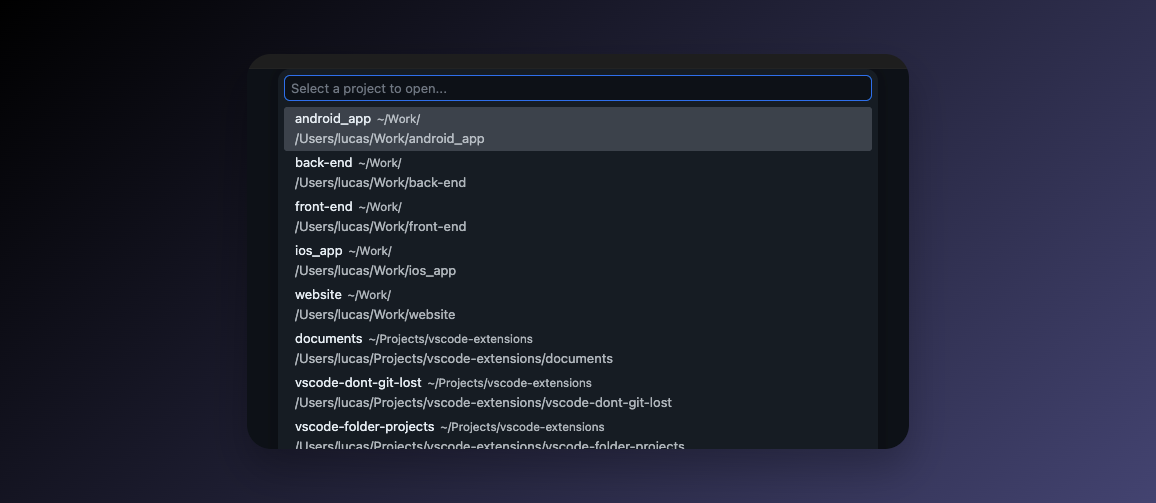
Select one and VS Code opens that folder immediately in the current window (or a new window if you’re holding a modifier key).
Browse projects from the Activity Bar
A dedicated Folder Projects icon is added to the Activity Bar. Click it to see all your projects organized by root directory — useful when you want to browse rather than search.
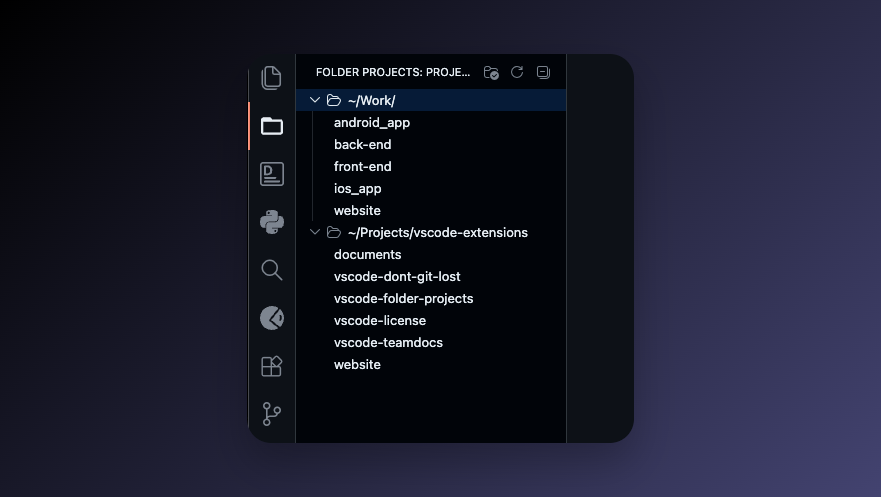
- Root directories appear as collapsible sections
- Click any project to open it
- Use the refresh button to re-scan after adding new folders
Zero registration required
Clone a new repo into ~/Projects and it appears the next time you open the picker. There’s no list to maintain, no configuration file to edit, no stale entries to clean up.
Ignore what you don’t need
Use the folderprojects.ignore setting to filter out folders that aren’t projects:
"folderprojects.ignore": [".*", "node_modules", "*/archived", "*/old-*"]
Patterns without / match against the folder name. Patterns with / match against the full path. Hidden directories (.git, .cache) are not shown by default.
Getting started
- Install Folder Projects from the Marketplace
- Add your root directories to
folderprojects.rootsin VS Code settings:"folderprojects.roots": ["~/Projects", "~/Work"] - Run
Folder Projects: List Projects to Openfrom the command palette - That’s it
Why not Project Manager?
Project Manager is a mature extension that supports manually saved projects, git auto-detection, tags, and remote paths. If you want explicit control over which projects are in your list, it’s a solid choice.
Folder Projects takes the opposite approach: your directory structure is the project list. If you already keep code in organized root directories, Folder Projects requires zero ongoing maintenance — new repos appear automatically, deleted repos disappear automatically. There’s nothing to save, tag, or curate.
FAQ
Does it support ~ in paths?
Yes. Both ~ and environment variables like ${HOME} are expanded.
Can I open a project in a new window instead of the current one? Yes — hold the standard modifier key when selecting a project (same as VS Code’s native “open recent” behavior).
What if my projects aren’t all direct subdirectories — I have nested folders? Folder Projects only lists immediate subdirectories of each root. If you have a deeper nesting, add the intermediate directory as an additional root.
Does it work on Windows? Yes, on Windows, macOS, and Linux.
What VS Code version does it require? VS Code 1.75 or newer.
Settings
| Setting | Description |
|---|---|
folderprojects.roots |
List of root directories to scan. All immediate subdirectories become projects. |
folderprojects.ignore |
Glob patterns for folders to exclude. |
From the blog
- How I manage 30+ projects in VS Code with zero maintenance — how the directory-as-project-list idea works in practice
Check out my other extensions
- Don’t Git Lost — step through any file’s git history without opening a terminal
- TeamDocs — keep your team’s Markdown docs one click away in the Activity Bar
