I have a lot of projects. Side projects, open-source repos, work repos, internal tools. They accumulate.
At some point switching between them in VS Code became its own small friction point.
The usual options weren’t quite right:
- File → Open Recent: a long list of full paths that never reflects what I’m actually working on
- VS Code Workspaces: overkill for just “open this folder”
- Project Manager extension: requires registering each project when I clone it and removing stale entries when I’m done — I want zero maintenance
The setup I’ve used for the past year takes two minutes to configure and has required zero upkeep since.
The idea: your directories already organize your projects
Most developers already keep code in organized directories. I have ~/Projects for personal work and ~/Work for repos I work on at my day job. Every subdirectory of those folders is a project.
What I wanted: treat every folder inside those roots as a project I can jump to. The list stays current automatically.
That’s what Folder Projects does.
Setup
Install Folder Projects, then add your root directories to VS Code settings:
"folderprojects.roots": [
  "~/Projects",
  "~/Work"
]
That’s it. Run Folder Projects: List Projects to Open from the command palette and you get a fuzzy-searchable list of every subdirectory across both roots.
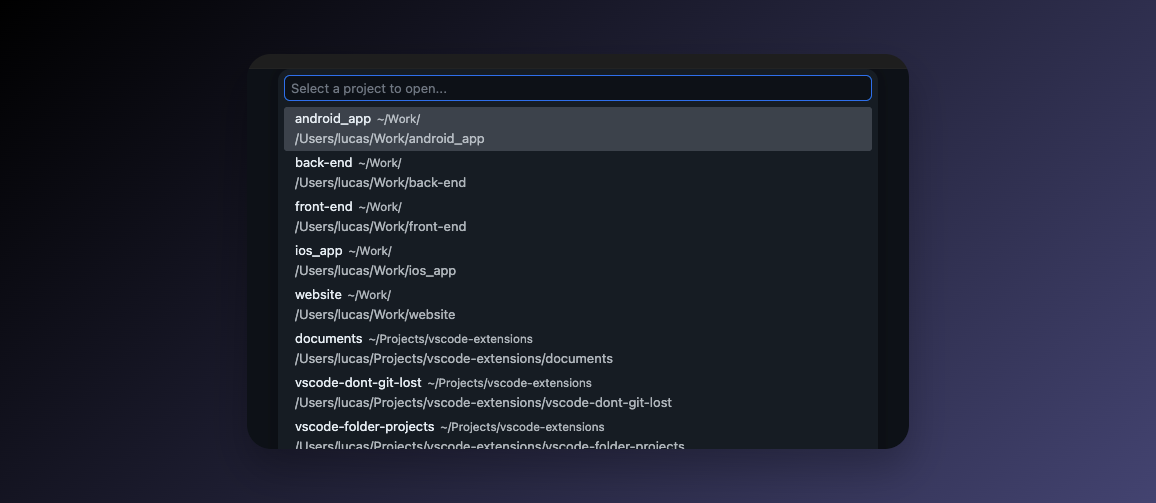
I also ignore a few things I never want to see:
"folderprojects.ignore": [
  ".*",
  "node_modules",
  "*/archived"
]
Hidden directories (.git, .cache) are excluded by default. The */archived pattern catches a subfolder I use to park old repos without deleting them.
The workflow
Cmd+Shift+P is already wired to my muscle memory, so adding a fp prefix to fuzzy-search projects feels natural. I also bound the command to Cmd+Shift+O — one shortcut, type a few letters, open.
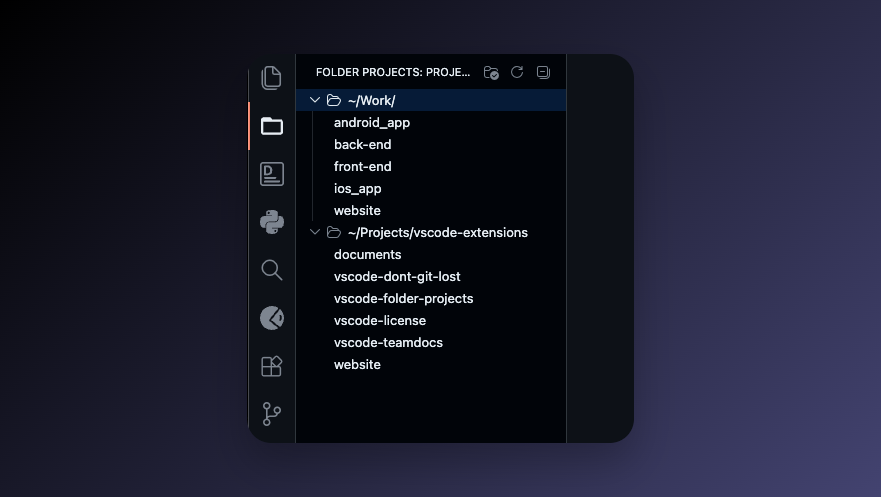
There’s also an Activity Bar view if you want to browse instead. Each root shows as a collapsible section with its projects listed underneath.
Why not Project Manager?
Project Manager is great if you want to explicitly curate your list — tag projects, save specific folders, access remote paths.
The tradeoff is maintenance. Every new clone needs to be saved. Every abandoned project needs to be removed. I wasn’t consistent about it.
Folder Projects has no curation step. Clone a repo into ~/Projects and it’s immediately available. Delete it and it’s gone. The list is the filesystem.
The result
I’ve cloned dozens of repos since setting this up. None required any configuration to appear in the list. The ignored patterns have never needed updating.
The whole thing runs in the background and I never think about it — which is exactly what I want from tooling.
Install Folder Projects and spend two minutes on it. That’ll probably be the last time you think about it.
